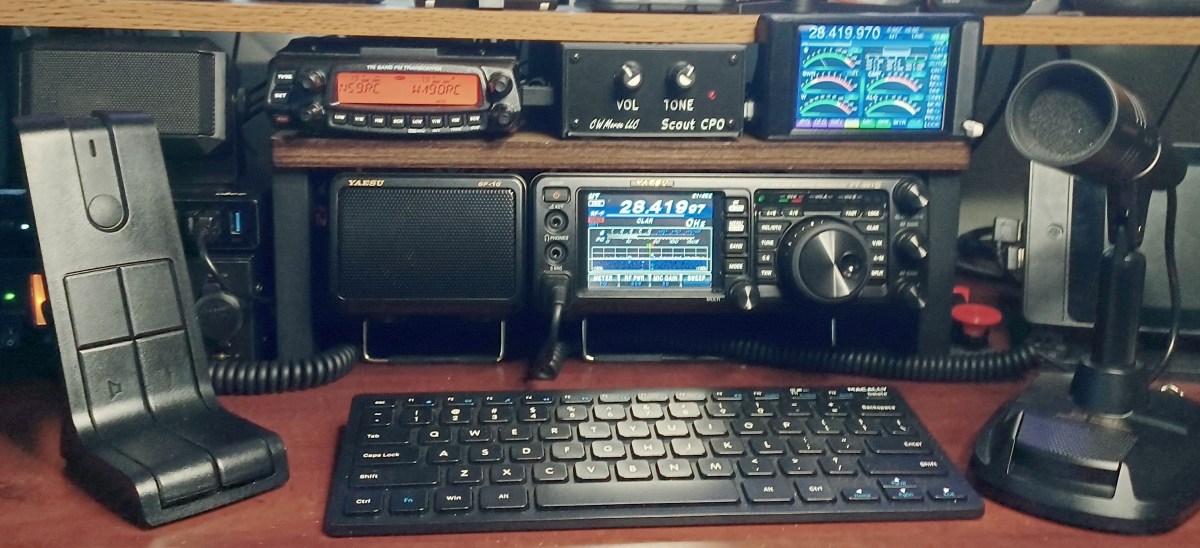
Superhet vs. SDR: Explained

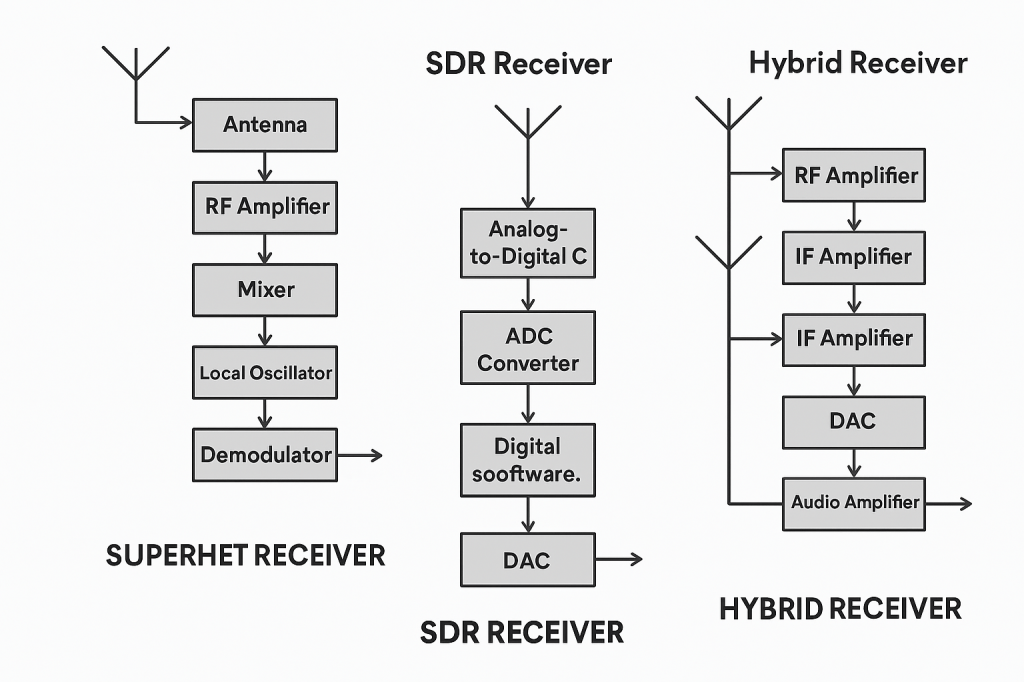
A superheterodyne (superhet) radio uses a series of fixed-frequency analog hardware filters and mixers to process a signal, while a Software-Defined Radio (SDR) primarily uses a high-speed analog-to-digital converter (ADC) and a computer or onboard processor to perform most signal processing in software.

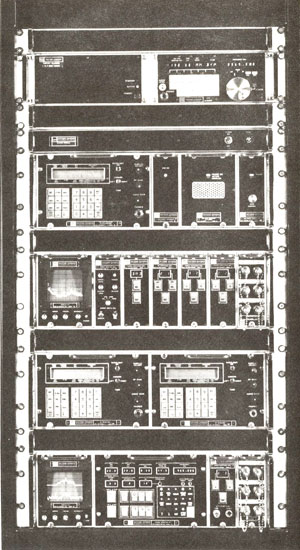
Back in the ’80’s when I was a Technician at Northrop-Grumman, I worked on a Receiver system that was made by Watkins-Johnson (WJ-9040 if I recall). All the units were painted matte black (spook stuff); There were modules for all the different bands; When the modules were all hooked together, the system could receive any signal, in any mode “known to man”. End-to-End the system was about 10 feet long! I was told the system (at the time) was deployed by NSA at US Embassies around the world to snoop on the local airwaves… Today, you can do that with a $30 SDR dongle and a Raspberry Pi. 🙂

A superheterodyne (superhet) radio uses a series of fixed-frequency analog hardware filters and mixers to process a signal, while a Software-Defined Radio (SDR) primarily uses a high-speed analog-to-digital converter (ADC) and a computer or onboard processor to perform most signal processing in software.

Core Architectural Differences

Feature Superheterodyne ReceiverSoftware-Defined Radio (SDR)
Signal ProcessingPrimarily analog electronic components (hardware-defined).Primarily digital signal processing (DSP) in software after initial digitization.
Intermediate Freq. (IF)Converts radio frequency (RF) signal to one or more fixed, lower intermediate frequencies for easier filtering and amplification.Often digitizes the RF signal directly or after minimal analog down-conversion (direct sampling/zero-IF).
FlexibilityFixed hardware design offers limited flexibility; changing modes or filters requires hardware modifications.Highly flexible; new modes, filters, and features can be added via software updates.
User InterfaceTraditionally uses physical knobs and switches.Often uses a computer interface with visual tools like a “waterfall” spectrum display.

Superheterodyne Receivers

  • Pros: Can offer superior performance in crowded RF environments by effectively handling strong, nearby signals with dedicated hardware pre-filters, which prevents overloading later stages. Known for excellent sensitivity and selectivity in well-designed, high-end models. They can also be more rugged and self-contained.
  • Cons: More complex hardware architecture; can suffer from “image frequency” interference if not properly filtered. Less adaptable to new technologies or changes in radio standards. 
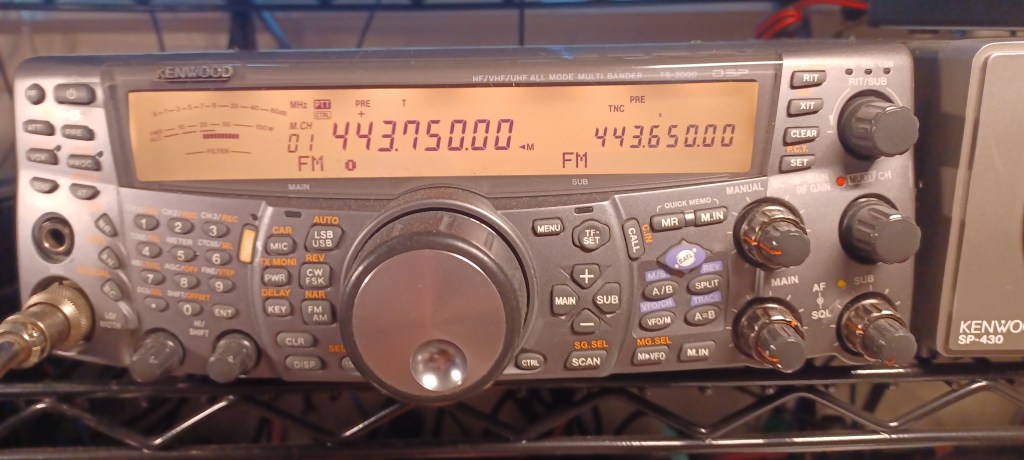
The Kenwood TS-2000 is a classic superhet transciever; It was manufactured 2001-2018.

Software-Defined Radios (SDR)

  • Pros: Unmatched flexibility, allowing for a wide range of bandwidths and demodulation schemes to be handled by the same hardware. Features like wideband spectrum scopes (waterfalls) make it easier to visualize and find signals. Good quality SDRs often provide excellent overall performance for daily amateur use.
  • Cons: Early or low-cost SDRs can be susceptible to overload from strong signals on adjacent frequencies unless external pre-filtering is added. They often require a separate computer for full functionality, or in standalone units, rely on expensive, high-speed analog-to-digital converters to achieve high dynamic range. 
Screen capture of the EESDR2 software running a SUN SDR2 DX

Hybrid Designs

Many modern, high-performance radios are actually hybrid designs, which combine the best of both worlds by using a superheterodyne front-end (mixers and filters) before the signal is digitized by an ADC. This approach uses analog filtering to maintain dynamic range and prevent overloading, while still allowing for the powerful, flexible digital signal processing capabilities of an SDR

Origins and Evolution of SDR in Ham Radio

SDR technology has revolutionized ham radio by replacing analog components with software, enabling greater flexibility, affordability, and performance. Its development began in military and commercial sectors in the 1980s and entered amateur radio in the early 2000s, now powering rigs from budget dongles to high-end transceivers.

  • 1980s–1990s: Military and Commercial Roots
    • SDR began as a solution for military radios needing multi-band, multi-mode flexibility.
    • Early systems were large, expensive, and used in secure communications and electronic warfare.
  • Early 2000s: Entry into Amateur Radio
    • Advances in digital signal processing (DSP) and affordable ADCs made SDR viable for hobbyists.
    • Projects like GNU Radio and platforms like FlexRadio introduced SDR to the ham community.
  • 2010s: Mainstream Adoption
    • Affordable USB dongles (e.g., RTL-SDR) allowed receive-only SDR experimentation.
    • Transceivers like the FlexRadio 6000 series, Elecraft KX3/K4, and Icom IC-7300 blended SDR with traditional interfaces.
  • 2020s: Hybrid and Full-SDR Integration
    • Radios like the Icom IC-7610 and Yaesu FTDX101D use hybrid architectures: analog front ends with digital IF processing.
    • Fully digital rigs offer remote operation, real-time spectrum scopes, and multi-mode decoding via software

Final Thoughts

Some Hams swear by superhet radios for their superior receive performance characteristics; Some wouldn’t even consider a pure SDR. Today, most of the high-end radios are hybrids. I remember when I told my boss I just bought a Yaseu FT-991A… The first thing he said, in a negative way: “That’s an SDR.” He’s an old-school Extra, exclusively into DX; He has an FTDX-101D (hybrid).
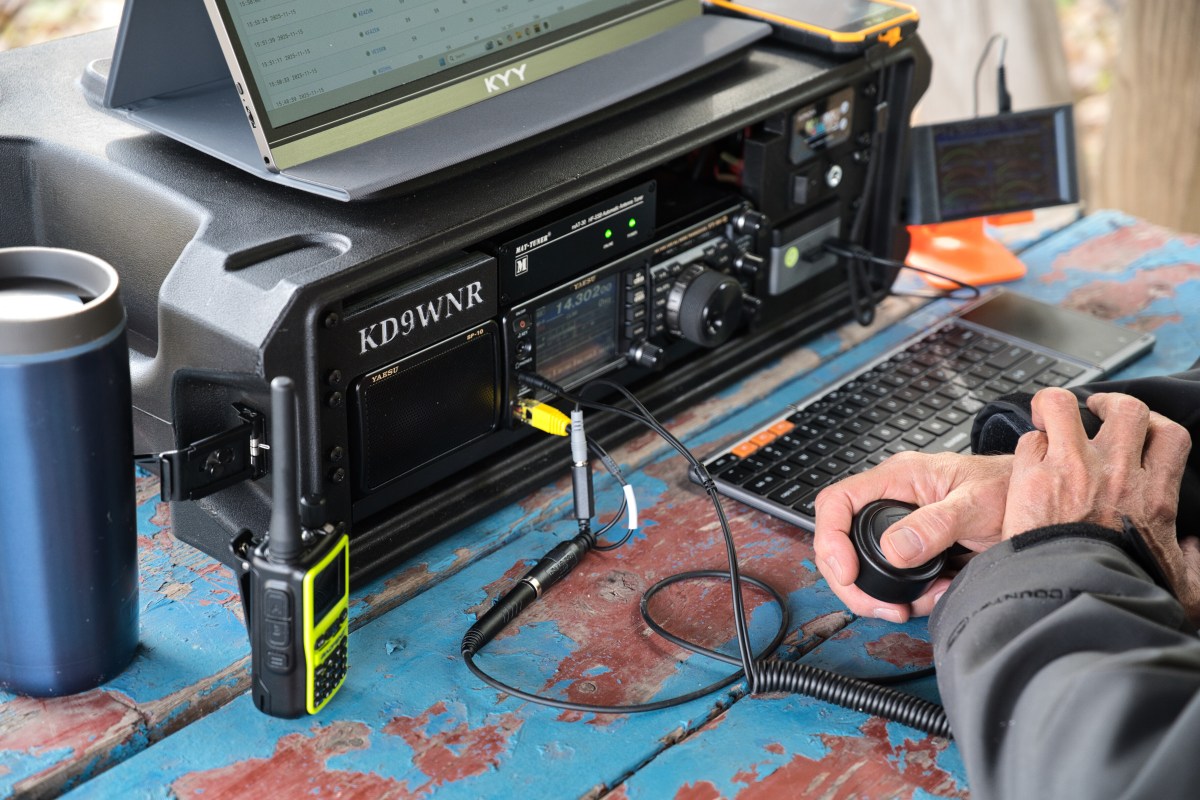
Ham Radio Go-Box

A ham radio go-box is a portable, self-contained communications station designed for rapid deployment in the field. It typically includes a transceiver, power source, antenna connections, and essential accessories—all pre-wired inside a rugged case for easy transport and setup.

Go-Boxes have a wide appeal in the Amatuer Radio hobby among Hams that like portable operations. Hams that do POTA Activations, participate in Field Days, and even “preppers” all have an interest in a grab-and-go kit to get a station on-the-air quickly almost anywhere.

First step is to determine where and what your Go-Box will be used for primarily. A POTA station may need totally different transceiver capabilities from an Emergency Communication (EmComm) station. The choices are many…

  • Emergency Communications (EmComm): Supports RACES, ARES, CERT, and Skywarn operations.
  • Recreational Field Ops: Perfect for POTA (Parks on the Air), SOTA (Summits on the Air), and Field Day.
  • Training & Outreach: Great for demos, scout events, and community preparedness.

Maybe you have an “extra” transceiver you’ve decided to put into a Go-Box, or designing one from scratch… Either way, you’ll need to decide on a Radio first, and then decide on what you want connected to it…

  • What kind of Battery? How Big?
  • Do I need a Power Supply (if 115v is available)
  • Do I need a Computer port or should I have a PC Built-In?
  • Do I need an Antenna Tuner?

Once you’ve decided all the stuff you want or need to get “in the box”… It’s time to pick a Box. Ham radio go-boxes are commonly built using rugged, customizable cases like Pelican, Nanuk, and Gator rackmount cases. These offer durability, modularity, and protection for sensitive radio gear in field conditions. But a lot of creative folks make go-boxes out of Ammo Cans and Picnic Coolers.

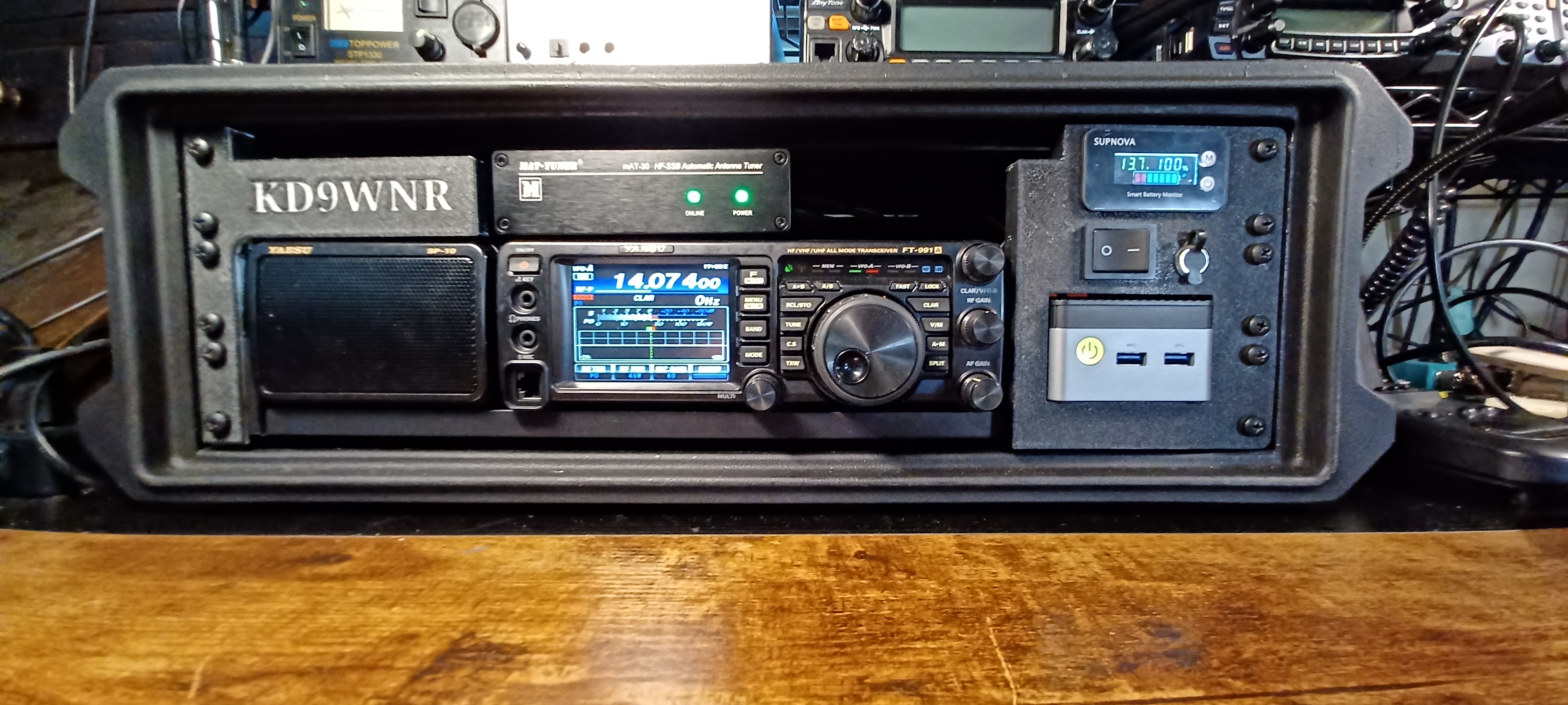
My first Transceiver was a Yaesu FT-991A; I later picked up a classic Kenwood TS-2000 that replaced the Yaesu as my primary Shack Radio, so I decided to re-task it for portable use.

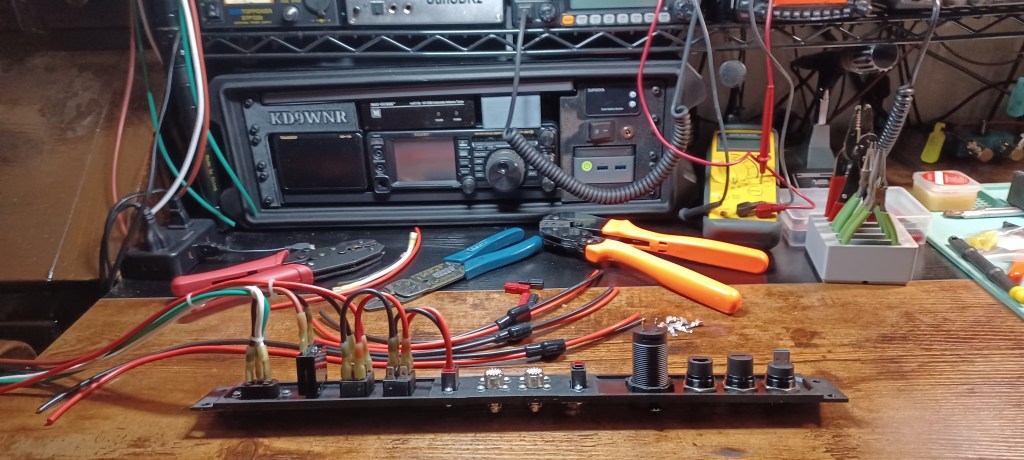
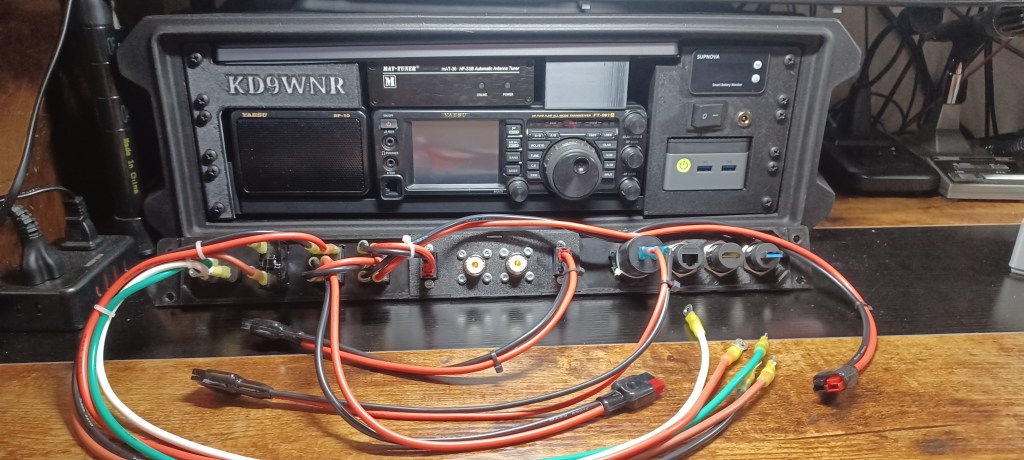
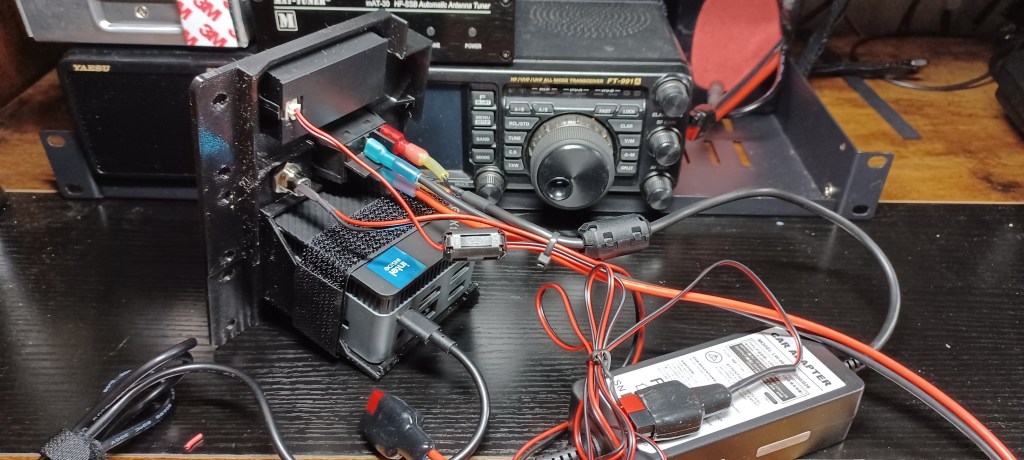
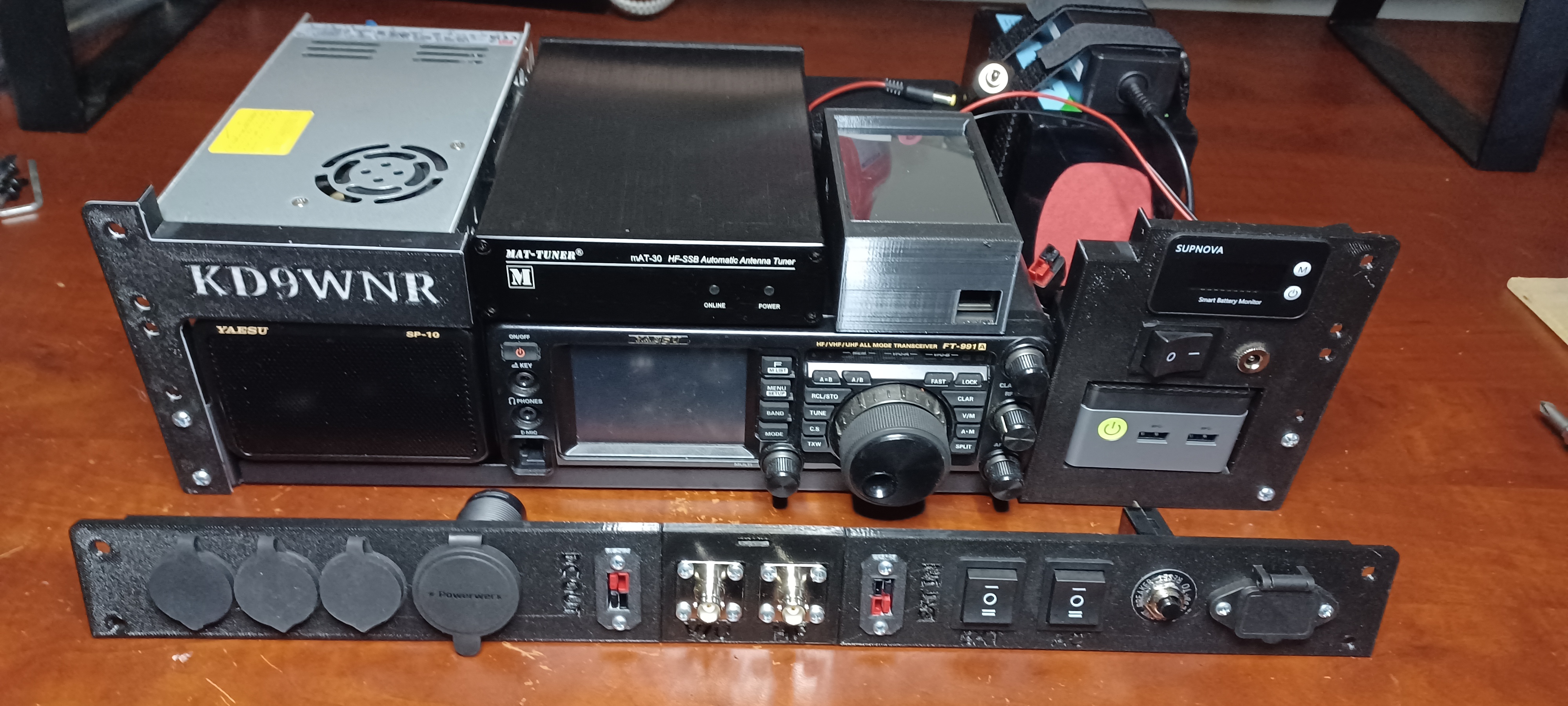
Here’s a peek at what’s inside my Go-Box… It all fits inside a Gator G-Pro 3U Shallow (13″) Rack Case:

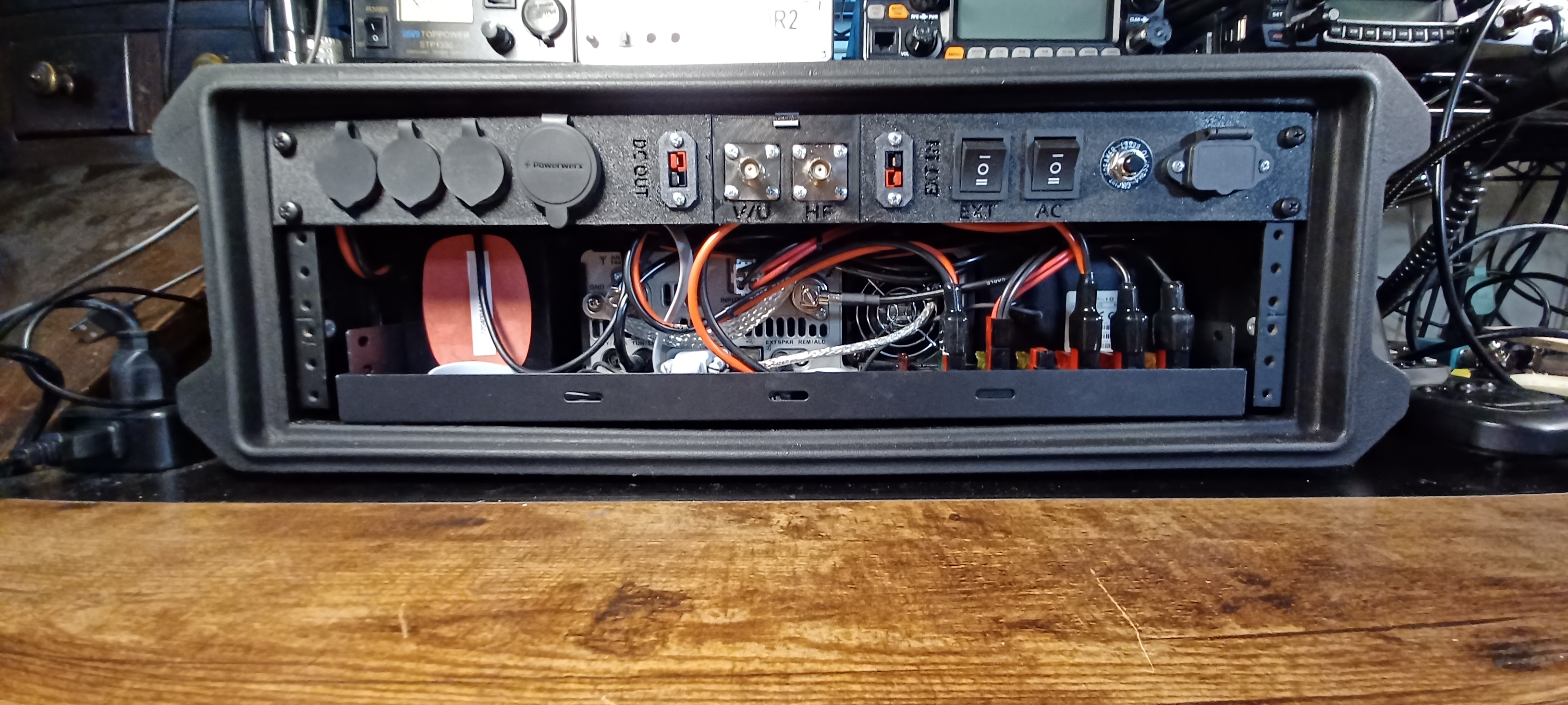
The 1U Rear Panel is 3D Printed. The STL files and details on the components used are here: https://www.printables.com/model/1485996-1u-go-box-rack-panel

Looking from the rear… There’s a USB Port connected to a Bi-Directional USB Switch. The Switch is also connected to the Mini PC and the USB Data Port on the FT-991a; This allows easy switching of the transceiver from the internal PC to an external Laptop or other device. Next to that is an HDMI Port extended from the Mini PC, and an RJ-45 Jack that connects to the transceiver CAT Port. The larger port is a Powerwerx 65W USB A/C Charger.

In the center are the Antenna Connectors, and Power Pole connections for an external DC source (IN), and Power Poles to power other devices (OUT) from the source selected on the Go-Box.

Starting on the right side, there’s an IEC 320 C14 Socket for a standard AC Power Cord. The Circuit Breaker is in-line to the Power Supply. The two Rocker Switches are used to switch Primary Power Source between AC or Battery, and Internal or External Battery.

A list with hyperlinks to all the components described above can be found, with the 3D Print files here: https://www.printables.com/model/1485996-1u-go-box-rack-panel 

What Makes a Go Box So Great

  • All-in-One Portability
    A go box packs radios, power, antennas, and accessories into a single rugged case—ready to deploy at a moment’s notice. Whether it’s a Pelican case, ammo can, or rack-mount system, it’s built for grab-and-go reliability.
  • Independent Power
    Most go boxes include LiFePO4 batteries, solar charge controllers, or DC power distribution, so you’re not reliant on the grid. That’s critical during blackouts, wildfires, or hurricanes.
  • Infrastructure-Free Communication
    Unlike cell phones or internet-based systems, ham radio doesn’t need towers or service providers. You can reach local responders on VHF/UHF or go global on HF—even when the grid is down.
  • Custom-Built for Mission Profiles
    Whether you’re doing Parks on the Air, storm spotting, or EmComm deployment, your go box can be tailored to your exact needs: APRS, digital modes, weather monitoring, or even mesh networking.
  • Field-Tested Readiness
    A well-designed go box isn’t just a showpiece—it’s meant to be used. Regular testing and real-world drills ensure it performs under pressure, not just on paper.
  • Training & Outreach Tool
    For Elmers, a go box is a powerful teaching aid. It shows new Hams how to build, operate, and troubleshoot a complete station—and it’s a great centerpiece for workshops or community events.

Parks on the Air (POTA): Overview and Guide for Beginners

Parks on the Air (POTA) is an international amateur radio award program that encourages licensed operators to visit and operate portable radio equipment from public parks. It grew out of the ARRL’s 2016 “National Parks on the Air” (NPOTA) event; after that one-year special event ended, volunteers founded POTA in early 2017 to continue the fun. The official POTA site describes its mission as promoting emergency communications awareness from national, state, or provincial parks: https://parksontheair.com/. Since then POTA has become wildly popular – Wikipedia notes over 325,000 participants worldwide. POTA awards are given for making contacts (“QSOs”) from parks, with points tallied by number of contacts, bands used, modes (voice, CW, digital), and other criteria. In short, POTA combines outdoor activity with radiosport, urging hams to “get out of the shack” and enjoy nature while practicing radio skills.

How POTA Works: Activators and Hunters

In POTA, an activator is an operator who sets up a temporary station inside a designated park and calls CQ POTA, while hunters (or “chasers”) are other operators who try to contact them. Activators typically announce their plans (often on the POTA website or social media) so hunters know when and where to listen. Any contact between a station in the park and any other licensed ham counts as a valid QSO (no special exchange beyond callsigns is required). When an activator logs at least 10 QSOs from the park in a single UTC day, the activation qualifies as complete. After the activation, the activator uploads a log file (in ADIF format) to the POTA website. The POTA system then credits each QSO to the activator and to the hunters, and updates award standings and leaderboards. (Hunters do not submit their own logs; they earn credit automatically via the activator’s log.)

Equipment and Portable Station Setup

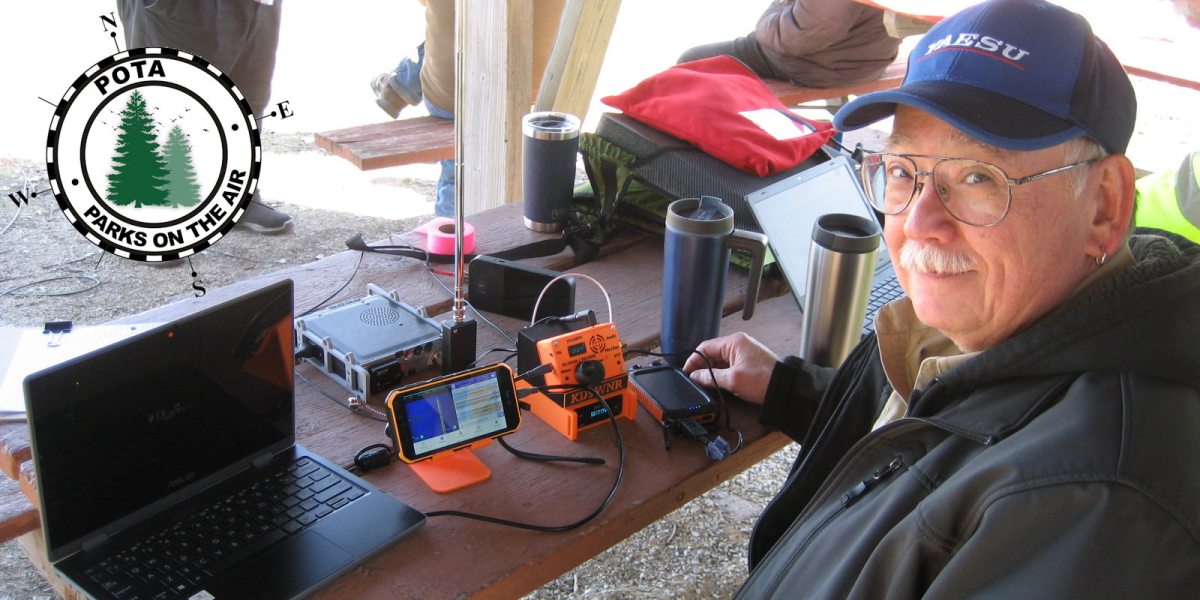
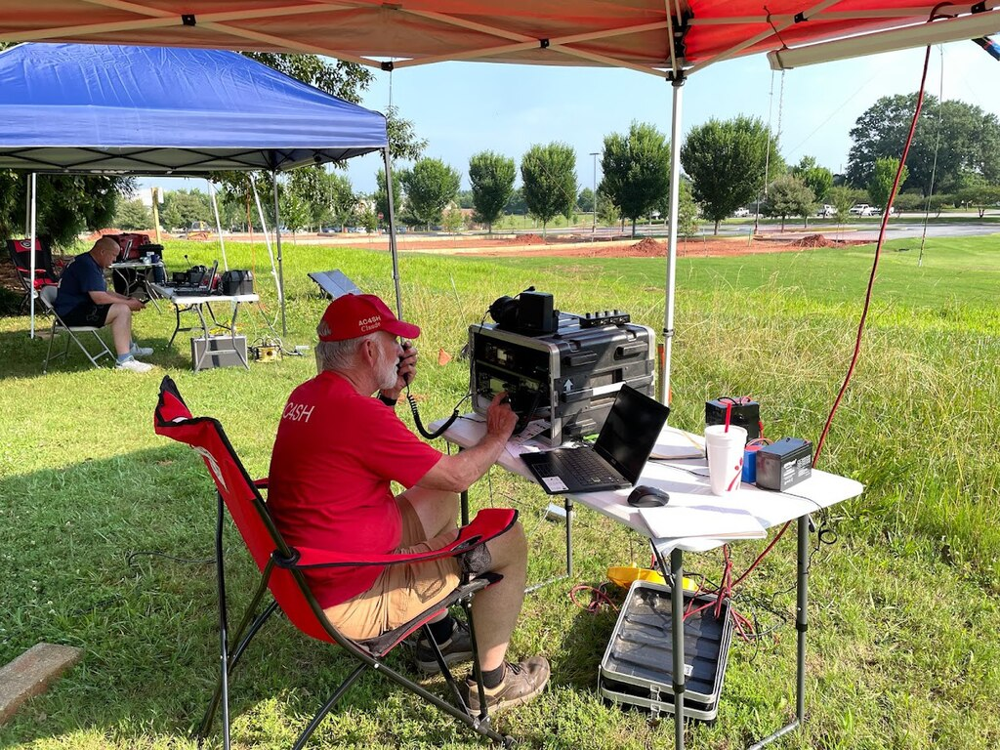
Activators usually pack lightweight, battery-powered gear for field use. A typical POTA station might include an HF transceiver or all-band radio, a 12V battery (or solar panel), a microphone or Morse key, and a portable antenna. The photo shows an example POTA setup under a canopy: a radio “go-box” on a table, a laptop for logging, a battery, and handheld antennas. Common antennas are whip-style or loop antennas that can be carried or tripod-mounted; some hams even throw wire antennas over tree branches using a fishing pole or kite. (The goal is to get a good antenna up while minimizing weight and respecting park rules.) Whatever equipment is used, it must stay within the park boundary. Activators often use shade (pavilions or canopies) and bring chairs, but always leave no trace when packing up. POTA emphasizes fun and learning – as the official guide notes, POTA is “an excellent way of developing your skills as a portable operator” (antennas, power, logging, etc.) – while also being courteous to other park users and staff.

Participating in POTA

  • Register and Prepare: Create a free POTA account with your callsign at the official POTA website https://parksontheair.com/, or directly at https://pota.app/#/. Review the POTA rules and guides on. You may also join the POTA Slack channel or Facebook group for help and announcements. Bring any necessary park permits or water/food for your outing.
  • Choose a Park: Use the POTA map (https://pota.app/#/map ) to find nearby eligible parks. The interactive map shows parks (yellow dots) by country or state; click to see park names and codes. Select a park and note its details (address, hours, permit requirements). Only official state or national parks are valid – private or city parks are not included.
  • Pack Your Gear: For a portable activation, essential items include a transceiver (HF/VHF), batteries (or solar), a field antenna, microphone/key, and logging tool (paper logbook or laptop/tablet). Bring antenna support (collapsible mast, tripod, rope), coax cable, and basic tools. A copy of the park boundary map and a watch (UTC time) are useful. Double-check that all gear is secured for transport.
  • Activate the Park: Drive or hike to your chosen park and set up at a suitable spot (picnic table or open area). Assemble your antenna and power up your radio. Call “CQ POTA” on a commonly monitored band (often 20m or 40m on HF, or 2m VHF/FM). Other hams (hunters) will respond with their callsigns and signal reports. You may also tune around and answer others calling CQ POTA. Continue making QSOs until you reach at least 10 contacts (required for a valid activation). You may operate on multiple bands or modes to work more stations. Remember to identify your station with your callsign and “POTA” as appropriate, and to operate politely (observe bandplans and DX code of conduct).
  • Log and Submit: Keep a log of each QSO with callsign, UTC date/time, band, and mode. You can log on paper and later enter into a computer, or use logging software (many activators use HamRS, ACLog, or similar). After the activation, export or create an ADIF log file with the required fields (your callsign, contact’s callsign, QSO date/time, band, mode). On the POTA website, go to your account and upload this log under the appropriate park and date. The system will reject any duplicate QSOs or invalid entries. Once uploaded, the POTA database credits each QSO toward certificates and awards for you (activator) and for the hunters on the other end.

Awards and Community

POTA offers a variety of awards and certificates to recognize participation. For example, there are awards for activating or hunting a certain number of parks, working all bands, or contacting many unique parks. These awards give operators extra motivation and track accomplishments. Besides awards, POTA is valued for community and learning: as one guide observes, it helps operators build skills in field radio, antenna design, power management, and more.

Useful resources include the official POTA website (https://parksontheair.com/) and its documentation (https://docs.pota.app/). The main portal (https://pota.app/#/) features an interactive map, an “Active Spots” page showing who is on the air, and your personal award status. For logging, many hams use programs like HamRS, ACLog, N1MM, etc., which can export ADIF for POTA. On social media and forums you’ll find advice on antennas (even ultralight “spooltenna” wire reels) and operating techniques. Ultimately, POTA is about having fun outdoors with radio, making worldwide contacts, and being a good ambassador for amateur radio in the parks.

HT Teardown Baofeng UV-17

I turned the HT on one day and the Up/Down buttons and two columns on the left side of the numeric keypad stopped working. Being I’m a highly experienced US military trained Electronics Technician, I knew exactly what to do… I banged it against the table until It started working.

The Baofeng UV-17 is a fun HT to play around with. I posted a review on this HT titled: Baofeng UV-17???. The question marks are my cute attempt to express the confusion that exists on the various models of the UV-17. I’m pretty sure the info in this post would apply to all variants of the UV-17, and likely apply to a good many HTs out there by varying manufacturers.

After only several weeks of light use, I turned the HT on one day and the Up/Down buttons and two columns on the left side of the numeric keypad stopped working. Being I’m a highly experienced US military trained Electronics Technician, I knew exactly what to do… I banged it against the table until It started working 🙂 Unfortunately, that “fix” didn’t last very long.

At least I knew it was probably a connection problem like a cold solder joint, or pinched cable and not a firmware or component failure problem… Whew!

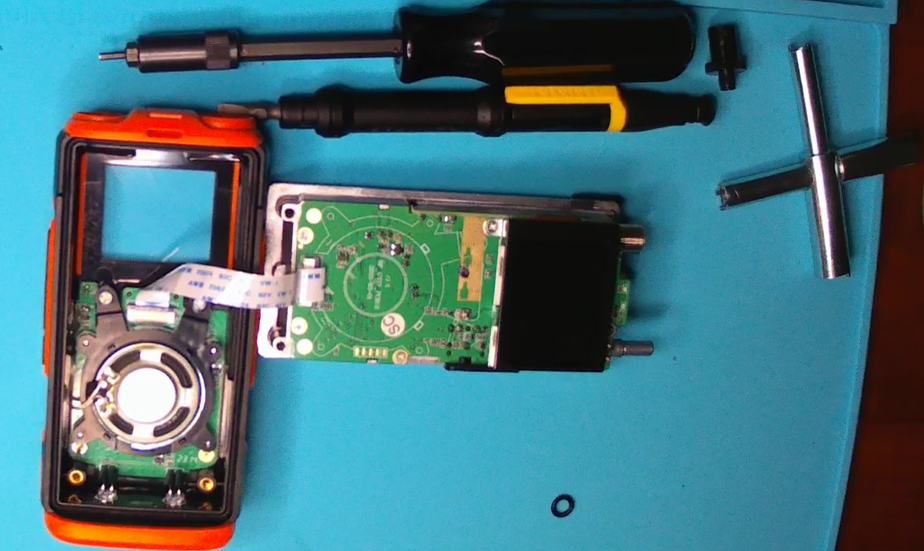
Needing to take it apart to have a look-see, I ordered a X-Key to remove the castellated retaining rings under the antenna and knob. It can probably be done without this tool using a pick, or a pair of needle nose. But, this $5 tool makes it a lot easier.

I was lucky that just opening up the unit moved something just enough to make it start working again. I didn’t want to damage it by dismantling it further… If it works, don’t…. So I just slapped it back together. So far it’s been working fine.

My First Hack – 8 Pin to 6 Pin Mic Adapter

So, I went on Amazon and got a couple of breakouts to cross-wire it all up. After a few quick test QSOs, I was getting reports of low audio. That’s when I found out the TYT Mic was intended for use at 9 Volts…

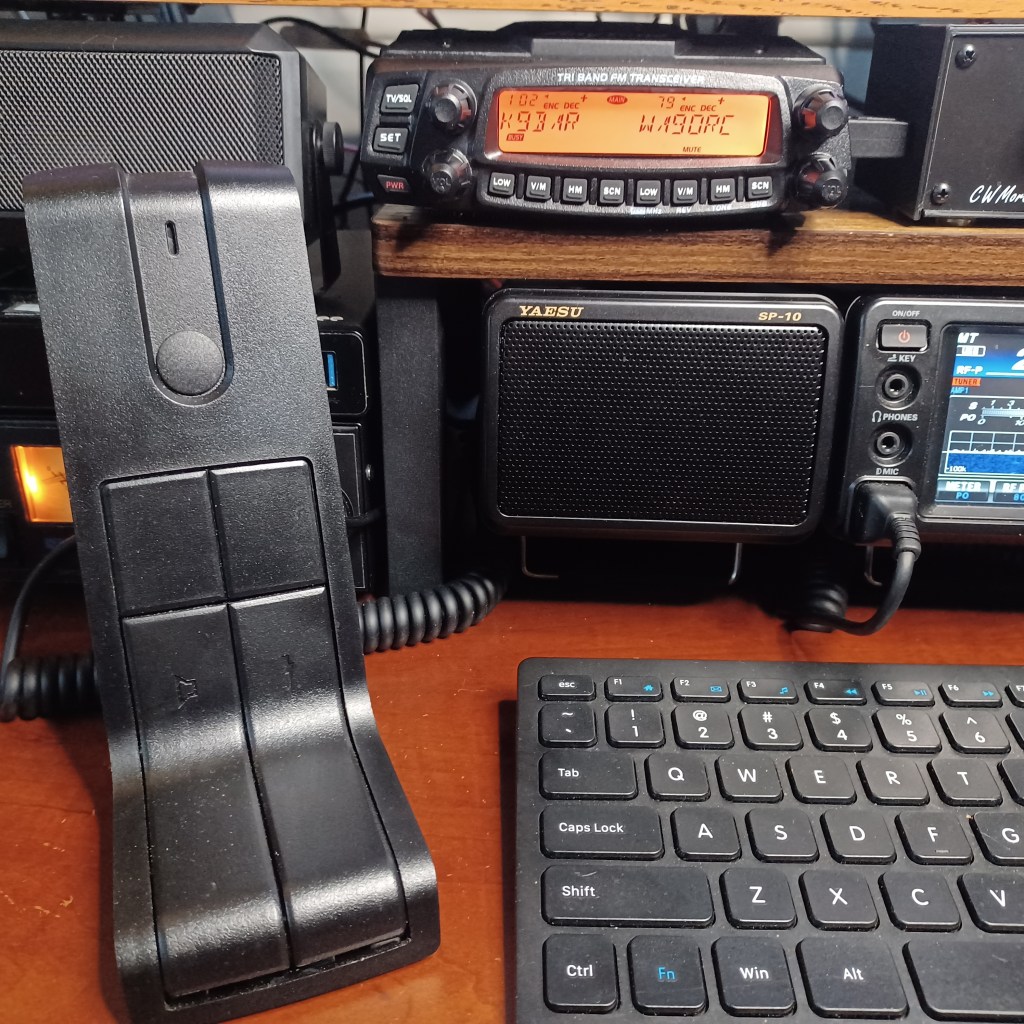
I had a TYT TH-9800 that crapped out after a few months. I was able to get a refund on the radio, but I was now stuck with a TYT DESKMIC1 and nothing to use it with. When I got the Anytone AT-5888UVIII to use in my shack for 222Mhz, I was bummed to find the Mic was not compatible (why would it?).

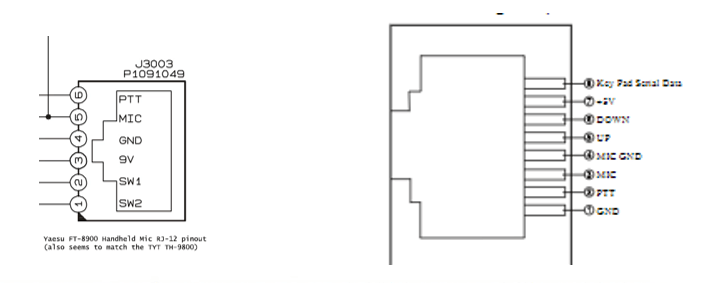
There is an Anytone QDM-01 desk mic for the AT-5888. It is physically exactly the same as the DESKMIC1 except: The Anytone uses an 8-pin RJ45 and the TYT uses a 6-pin RJ12 connector. I didn’t want to spend another $60 for something I already had… I was determined to make this Mic work with the new radio.

Unlike the radios in the article Not All CCRs Are Cheap... I do believe both these microphones were made in the same factory. Probably a Chineese company that focuses on these types of accessories.

So, I went on Amazon and got a couple of breakouts to cross-wire it all up. After a few quick, test QSOs, I was getting reports of low audio. That’s when a google check revealed that the TYT Mic was intended for use at 9 Volts… The Anytone only puts out 5 Volts. No worries, for $9 I got a 9V Buck converter, and a hobby-box to stick it all in.

Anytone AT-5888 Pinout on right

I know, I know… sloppy job. But I was slapping it together to finish in time for a 220 Net that night; I wanted to try it out. I even screwed the cover on before testing it. When I logged in to the Net, I was pleased to hear that my audio was full copy, with the gain right where it should be (about 1/4 turn from max).

So for about $25 in parts, I avoided spending $60 for a second Mic, and was able put that paper-weight TYT Mic to good use. I’m glad it worked… I felt like a chump for buying a TYT Radio every time I saw that Mic sitting around just collecting dust.

Connect your Hotspot to WiFi

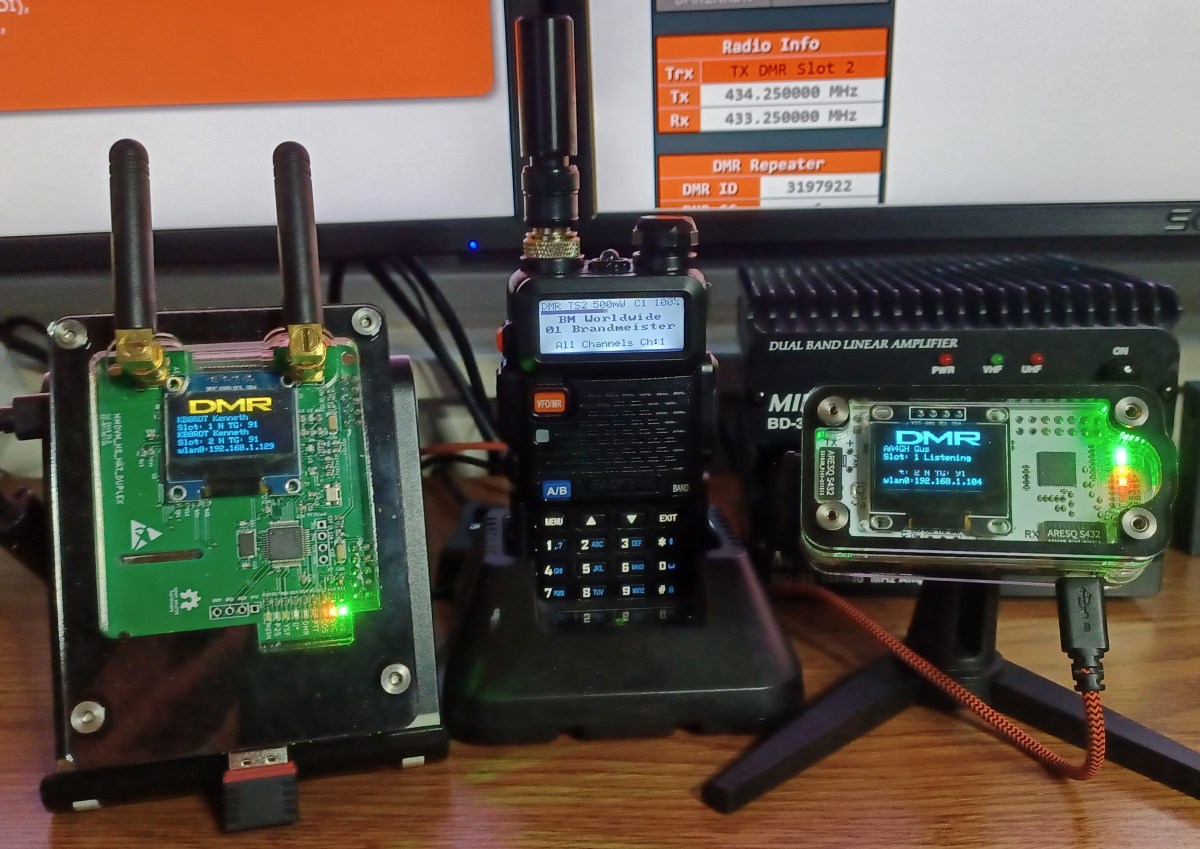
This is where I had a little trouble. Seems I’m not alone. Folks on the local 2 meter nets sometimes talk about confusion on how to connect a Hotspot to WiFi. So the next section will fast-forward to that step in the process.

This is where I had a little trouble. Seems I’m not alone. Folks on the local 2 meter nets sometimes talk about confusion on how to connect a Hotspot to WiFi. So the next section will fast-forward to that step in the process.

  1. Get an RFID
    • Every User on DMR has an ID Number that’s linked to their Call Sign. The RFID is issued by RadioID.net. You’ll need this to setup your radio and join networks.
  2. Join a Network
    • Register for an account on the Brandmeister Network. It’s easy and has an active worldwide talkgroup (TG 91) that will be good for testing your setup and making your first QSOs.
  3. Get a Raspberry PI Hotspot
    • You can buy one or build one from parts (a bit cheaper and more fun); Ready made Hotspots and/or parts to build one are all over on Amazon, Aliexpress, and elsewhere.
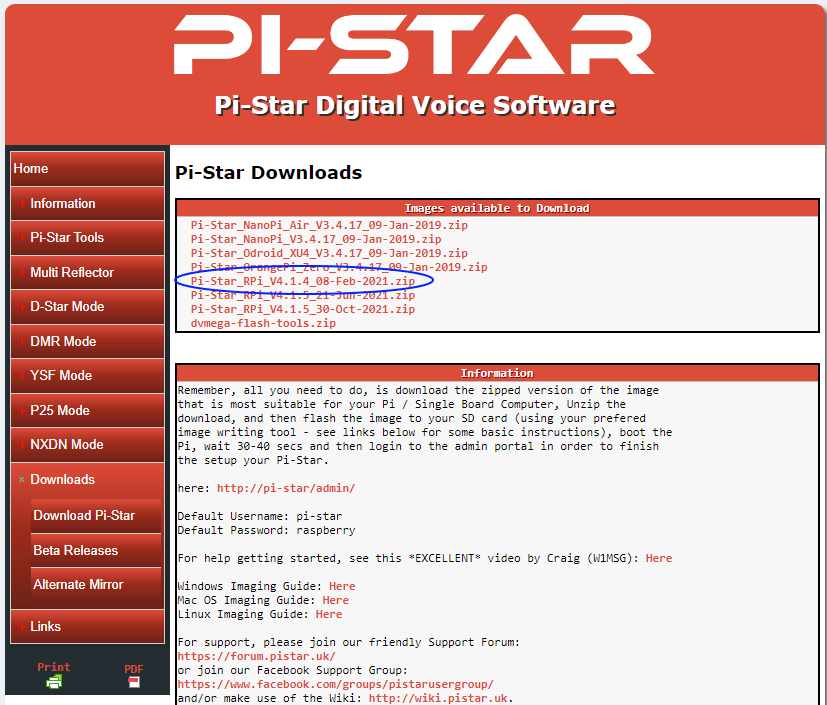
  4. Download the latest version of the Pi Star image (img) file from pistar.uk
    • Select the latest “Pi-Star_RPi file”
    • Note the useful Information; You’ll need it later.
  5. Burn the Pi Star boot image to a fresh micro SD card; An 8G card is plenty.
    • There’s loads of info on how to do this on the internet
Pi Star Downloads Page

This is a point in the process where I discovered a significant “Wish I Had Known That Moment”. The next step is getting the Hotspot to connect to your WiFi. Turns out there’s several different ways to do this. Figuring out what’s easiest for you is the challenge. What follows is the method I’m most comfortable with… No dragging out cables and stuff.

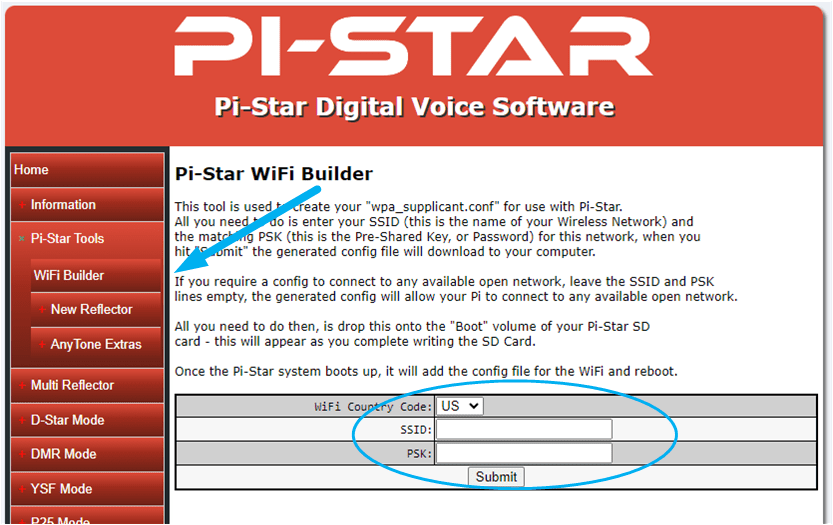
Select the WiFi Builder, under Pi Star Tools in the left menu. This tool will create a file named “wpa_supplicant.config”. This file will tell your Raspberry Pi the WiFi settings at first boot up.

Pi Star WiFi Builder
  1. Create a “wpa_supplicant.config” file
    • You’ll need the SSID and WPA Password for your WiFi network.
    • The file will be written to your Downloads folder
  2. Copy the “wpa_supplicant.config” file to the root on the Pi Star Boot micro SD card you just made
  3. Insert the card into your Hotspot and Power it ON

As mentioned, there are other ways of getting the WiFi settings right. You can connect a monitor and keyboard to your Pi and configure the WiFi by command line. Or, you can connect the Hotspot to your router via Cable, or connect it direct to your PC with a cross-over cable. This gets you into the Pi Star Dashboard by entering pi-star.local in your browsers address bar. From there, you can manually set the WiFi. For me, creating the file and letting the Pi do the work is easiest.

The wpa_supplicant.config file is used by your Raspberry PI during initial boot-up to set the WiFi connection to your network. Pi Star will apply these same settings automatically. It may take several minutes for your hotspot to fully boot; Older, less powerful PIs will take longer.

If your Hotspot has a OLED, you’ll know when it started up. If not, watch the LEDs; The green and yellow should be constant, and the red LED next to the green one should be flashing. Note: After initial boot… the wpa_supplicant.config file will be deleted from the SD card automatically.

Lessons Learned in DMR

There’s a multitude of reasons folks get into DMR. It may be helpful if you first answer to yourself the questions below. They may steer your choices in which DMR network to join, or equipment choices and such down the road.

I think I’ve finally fully recovered from my “DMR phase”. Soon after I got my ticket, and almost immediately after I started this blog, I went down the rabbit hole of Digital Mobile Radio (DMR). That partially explains why there hasn’t been a post in awhile… I say partially because, immediately after I emerged from the DMR maze I dove right in to FT8 (more later).

I’ve always been a computer geek of sorts, but in no way a programmer or developer. I once had a role where I worked that included being the “IT guy” for about 25 end-users back in the Windows 98 and XP days. I’ve put up a few Windows 2000 servers and a Linux box running an Intranet server. Our main MRP server ran Linux RedHat, 3.2 I believe. Remember those days? The merging of computers with Ham radio was a driving factor in getting my license. Plus giving me an excuse to build a few more Raspberry Pi projects… BONUS!

This blog is not about trying to explain stuff about stuff that’s already overflowing on the internet like “What is DMR?” or, how it works. Frankly, I’m not sure I know. This blog also isn’t about me trying to come off as some kind of expert and impress you with my new found knowledge. It’s just me sharing my experiences. Sometimes, just knowing where to start is helpful.

There’s a multitude of reasons folks get into DMR. It may be helpful if you first answer to yourself the questions below. They may steer your choices in which DMR network to join, or equipment choices and such down the road.

  • Why do I want to get on DMR?
    • Ragchew
    • Log Contacts (gets old quick)
    • Talk to direct (known) contacts worldwide
    • Talk to operators with common interests regionally or worldwide
  • Do I want to make contacts on Local Repeaters?
  • Am I going to need, or do I want a Hotspot?
    • Buy it or Build it?

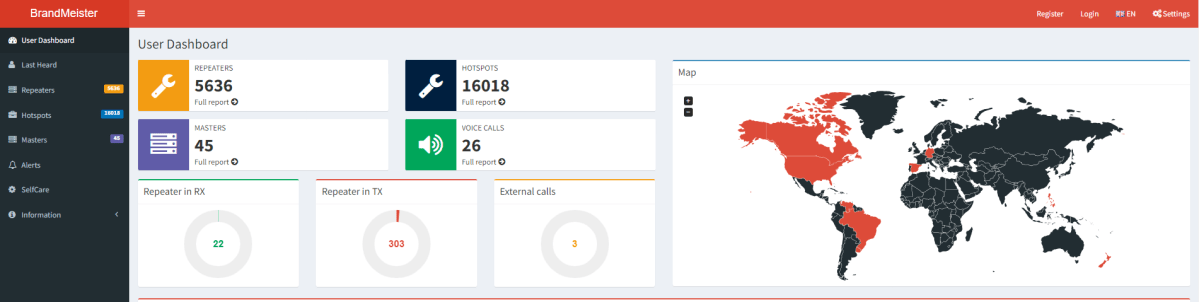
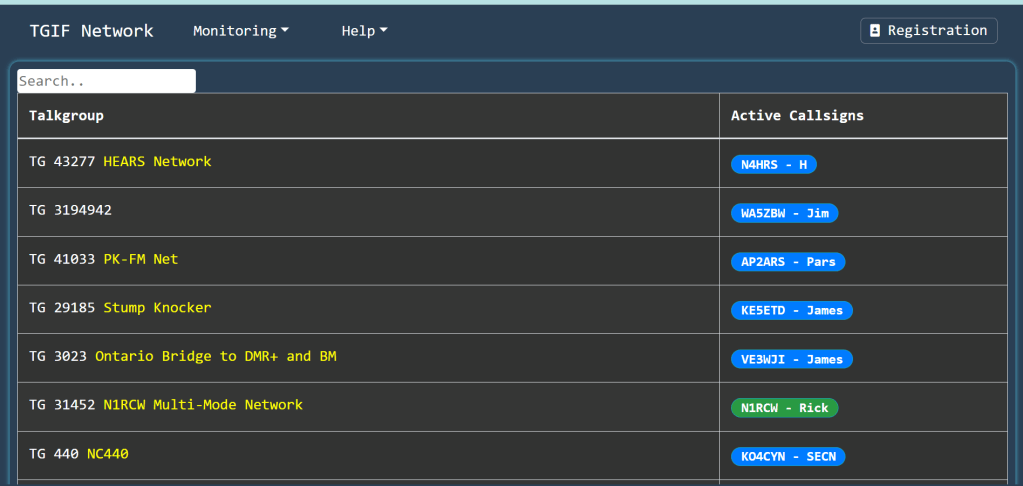
After doing all the research to answer the questions intelligently, and assuming you still want to take a dive into DMR… The next thing is you’ll need to choose which DMR Network you want to join. The Brandmeister Network is popular and a good place to start. For more focused talkgroups you may want to look at the TGIF Network. There’s more, but I’ve only used these two. Both these networks have a web page that lets you see what’s happening real-time. TGIF talkgroups have descriptive names as to what they’re about… sometimes it’s fun watching the names of the talkgroups scroll by.

Another option is DMR-MARC, if you’re fortunate enough to have a DMR-MARC repeater in your area.

Like I said… I’m a geek. So the driving force for me was just getting it to work for any and all of the above. I didn’t say doing any of the above. For me, it’s the challenge and learning experience of getting it to work. Note: After making a bunch of contacts to prove everything worked, I haven’t even turned on my Hotspot in a week or so. I was working on FT8 🙂

So with that, I’m putting together a bullet list of what I believe is the easiest and most direct path of stuff you need “TO-DO” to get operational on DMR. BTW: This is not the path I took stumbling down the DMR rabbit hole… This is the “wish I had known” version.